What Actually Happens to Your CPU When Rendering 4K on an AIO?
Short answer: Yes, but with major asterisks. A modern slim All-in-One (AIO) can play back and edit 4K timelines smoothly, but sustained workloads—like multi-layer color grading, heavy VFX, and long final renders—will push these compact machines straight into thermal throttling.[caption id="" align="aligncenter" width="800"]
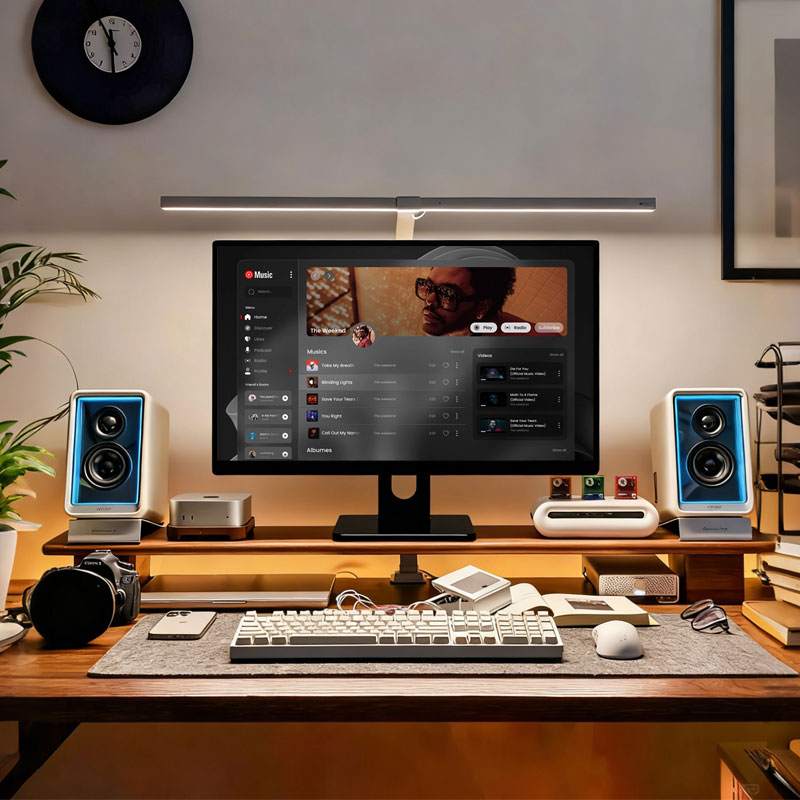 Home Use All-in-One PCs, Accompanying Every Moment at Home[/caption]
Why Slim AIOs Struggle with Thermals
Slim AIOs prioritize clean desktop aesthetics and minimal footprints. To fit entire computer internals behind a 24-inch or 27-inch display panel, manufacturers make critical cooling compromises:
Laptop Components in Desktop Cases: Most slim AIOs use mobile-grade CPUs (such as Intel Core H-series or AMD Ryzen HS-series) or heavily power-capped desktop chips.
Constrained Airflow: Instead of large heatsinks and 120mm fans, slim AIOs rely on thin copper heat pipes and small radial blower fans similar to gaming laptops.
Proximity to the Display: The display panel itself generates significant heat, adding ambient thermal pressure inside the chassis.
What Happens During 4K Video Editing?
Video editing isn't a uniform workload. Thermals behave very differently across different stages of the post-production workflow:
1. Timeline Playback & Editing (Bursty Workload)
Scrubbing through 4K footage relies heavily on dedicated hardware decoders (such as Intel QuickSync, NVIDIA NVENC, or Apple's Media Engine). Because these dedicated silicon blocks are extremely efficient, CPU and GPU temperatures stay manageable, keeping playback smooth without immediate throttling.
2. Long Renders & Exports (Sustained Workload)
When exporting a 10-minute 4K project with color LUTs and transitions, all CPU cores and GPU execution units run at maximum clock speeds for extended periods.
Within 30 to 60 seconds, internal temperatures frequently spike to 90°C–100°C.
To prevent permanent damage, the system automatically lowers clock speeds and power draw (thermal throttling).
The result: Your clock speeds drop by 20% to 40%, extending render times significantly compared to a traditional tower PC with similar specs.
The Architecture Split: Apple Silicon vs. x86 Windows AIOs
Thermal throttling in slim AIOs varies dramatically depending on the processor architecture:
| Feature | Apple Silicon AIOs (e.g., 24" iMac) | Windows Slim AIOs (Intel / AMD) |
| Power Efficiency | Exceptional (15W–30W typical draw) | Moderate to high power draw (45W–100W+) |
| Thermal Ceiling | Rarely reaches severe thermal throttling | Reaches thermal limits quickly during renders |
| 4K Editing Performance | Handles 4K ProRes and H.265 smoothly | Handles cuts well; exports suffer under long renders |
| Fan Noise | Nearly silent under normal loads | Noticeable fan noise during timeline scrubbing |
How to Edit 4K on a Slim AIO Without Slowdowns
If you already own or plan to buy a slim AIO for 4K video editing, these strategies keep performance stable:
Edit with Proxies: Transcode heavy 4K H.264/H.265 camera files into lower-resolution proxy files (like 1080p ProRes Proxy or DNxHR LB) during editing, then switch back to original 4K media for the final export.
Leverage Hardware Acceleration: Ensure your editing software (DaVinci Resolve, Premiere Pro, or Final Cut Pro) utilizes hardware-accelerated encoding/decoding rather than raw software CPU rendering.
Use External NVMe Storage: Internal AIO storage can throttle when saturated with reads/writes. Use a fast Thunderbolt 4 or USB 3.2 Gen 2x2 external SSD as your scratch disk.
Elevate and Ventilate: Keep the air intakes along the bottom and top edges of the AIO free from obstruction, and avoid placing the unit flat against a wall or in warm environments.